How to measure distances and areas on a PDF to scale
To measure a PDF to scale, open Measure PDF and draw a line over something whose real length you know, then type that length in to calibrate the page. After that, click two points for a distance, or trace a shape for its area and perimeter.
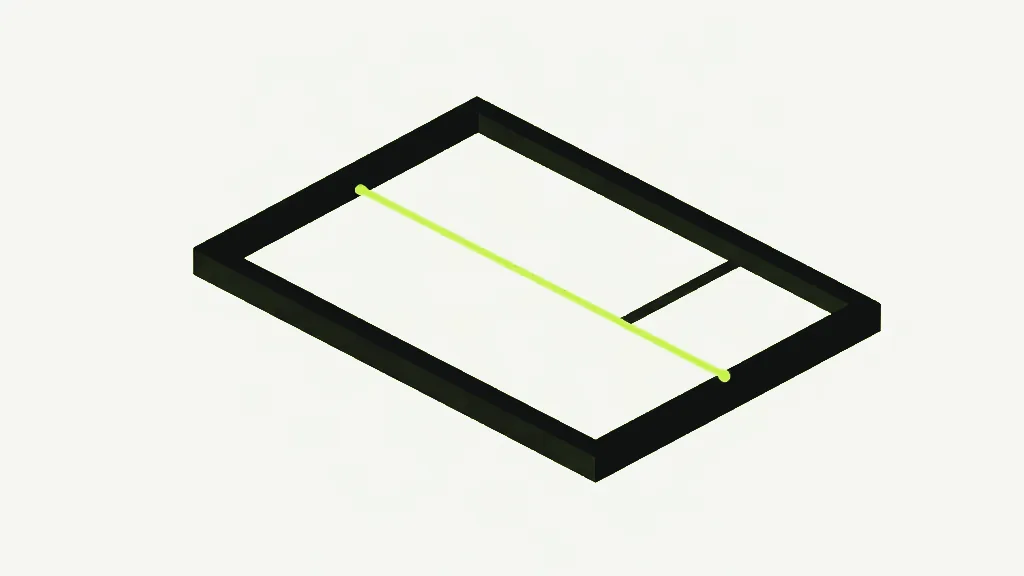
To measure a distance or an area on a PDF to scale, you first have to teach the file its own scale, because a PDF has no idea how big anything on it is. In Measure PDF you draw a line over something whose real length you already know — a dimensioned wall, a scale bar, a door — type that length and its unit, and the tool works out how many real-world units one PDF point is worth. Every distance and area you draw after that reads out in your unit.
How to measure a PDF to scale
Open Measure PDF
Go to Measure PDF and drop in your file. It renders in your browser — no account, no install, nothing uploaded.
Calibrate against a known length
On the Calibrate tab, click the two ends of something whose real length you know, type that length, and pick a unit — millimetres, centimetres, metres, inches or feet. The Distance and Area tabs stay greyed out until you have done this.
Measure a distance
Switch to Distance and click two points. The straight-line length appears as a label right on the page, in your chosen unit.
Measure an area
Switch to Area, click around the corners of a shape, then press Close shape. It reports the enclosed area and the perimeter together.
Download the marked-up copy
Click Download with measurements. Your lines and labels are drawn onto a copy of the PDF, and the page underneath stays exactly as it was.
Is there a free tool to measure PDFs?
Yes. Measure PDF is free, needs no signup, and runs entirely in your browser — your plan is never uploaded to a server. It measures straight-line distances and the area and perimeter of any shape you trace, at whatever real-world scale you calibrate, and lets you download the drawing with every measurement marked on it.
Do I have to calibrate the scale first?
Yes, and the tool enforces it — the Distance and Area tabs are disabled until you have set a scale. A PDF stores positions in points, one point being 1/72 of an inch, not real distances, so without a calibration line a wall is just a number of points with nothing to convert it into metres or feet. One known length teaches the file the rest.
How do I measure an area and not just a distance?
Pick the Area tab and click each corner of the shape, then press Close shape — it needs at least three points. The area is worked out with the shoelace formula, so an L-shaped or otherwise irregular room measures correctly without being chopped into rectangles first, and the perimeter comes back alongside it. One thing to watch if you re-calibrate: areas move by the square of the change, not in step with it.
Three things worth knowing before you trust a number. Readings are rounded for display — anything under 100 is shown to up to two decimals, anything 100 or more is rounded to a whole number — so 4.27 m keeps its detail while 128 m has been rounded off. The marks you download are real vector lines and text drawn over the page, not a flattened picture, so the document's own text stays selectable underneath them. And the scale itself is never written into the file — it lives in your session while you work, so if you close the plan and open it again tomorrow, you calibrate once more before measuring.