How to edit a PDF on iPhone — and what “edit” really means
To edit a PDF on an iPhone, open it in Files and tap Markup, or use Annotate PDF in Safari, to draw, highlight and add text. Rewording the original text needs a converter.
Edit a PDF on an iPhone and you quickly find the word "edit" is hiding two completely different jobs. One is marking the document up: a highlight, an arrow, your initials, a date in a blank. The other is changing the words that are already printed on the page. The first your phone does beautifully and for free. The second no phone browser does at all, and most of the frustration people feel comes from wanting the second and being sold the first. Here is how to do the part that works, and what to reach for when you need the part that does not.
How can I edit a PDF on my iPhone for free?
Open the PDF in the Files app, tap it, then tap the Markup icon — the pen tip — and you can draw, highlight, and drop text boxes with a finger, no app and no account. For neat rectangles, circles and consistent boxes, open Annotate PDF in Safari instead. Both are free and both work offline.
Open the tool in Safari
Open Annotate PDF. It is an ordinary web page — nothing to install, no account to make.
Choose the PDF
Tap the upload area and pick your file from Files. Every page is rendered on your phone first, so a long document takes a moment before the toolbar is live.
Pick a tool and a colour
Draw, Highlight, Text, Box or Circle, in one of five colours, with a size slider for the stroke weight.
Mark the page with your finger
Drag to draw or highlight, or pull out a box or circle. For text, tap where it goes and type. The page arrows move you through a longer document, and marks stay on the page you made them on.
Save
Tap Save annotated PDF. The marked-up copy is built on your phone and downloads with _annotated on the end of the name.
Can I edit a PDF on my iPhone?
Yes, in the sense almost everyone actually means: you can add things to it. A highlight over a clause, an arrow at the figure that is wrong, a signature, a date typed into a blank line. What both iOS Markup and a browser tool are doing is laying your marks on top of the page as a new layer, not reaching into the page and altering what is already there.
That distinction sounds pedantic until it bites you, which is why it is worth saying plainly before you start rather than discovering it halfway through. Adding to a page is a solved problem on a phone. Rewriting the page is a different tool entirely.

How do I edit the text on a PDF?
You do not rewrite it — not on an iPhone and not in any browser tool, free or paid. A PDF does not store paragraphs you can retype. It stores each letter as a shape placed at a fixed spot on the page, so there is no sentence to put a cursor into. What you can do is cover the old words with a box and type new words on top, but that added text is a picture of text, not text.
We checked this rather than describing it. We stamped the word "APPROVED" onto a contract with the annotate tool and read the saved file back with a different PDF library than the one that wrote it. The original clause underneath was still there as selectable, searchable text, completely untouched. The word we added was not text at all — it came back as pixels inside a single flat image laid over the page. So two things are true at once: nothing you add is searchable later, and nothing already in the document is changed or removed by marking it up. If you covered a number with a box, the old number is still under there — redaction is the tool for making something genuinely gone.
How do I convert a PDF to an editable document on iPhone?
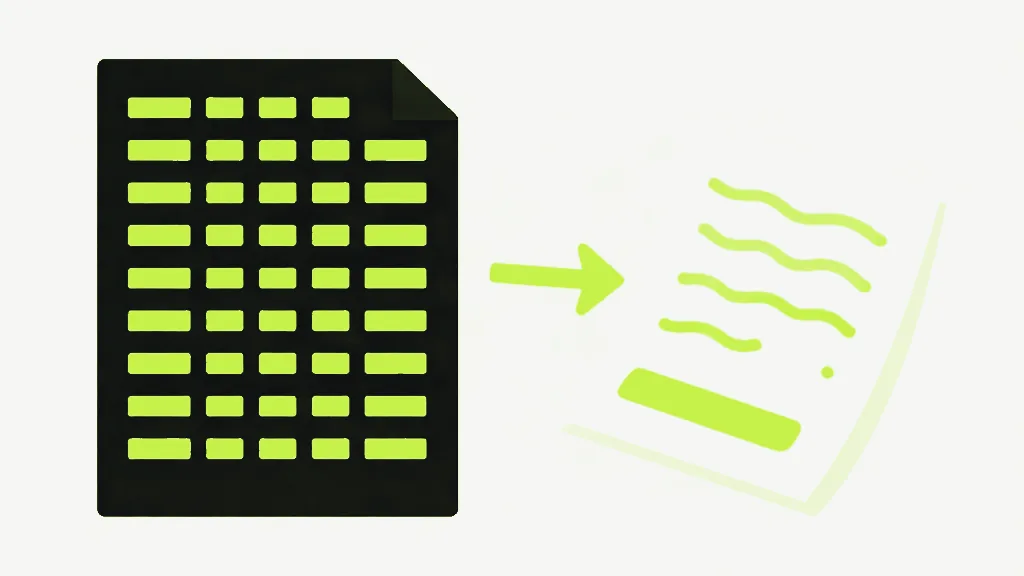
When you genuinely need to change the words, stop trying to edit the PDF and convert it into something built for editing. Turn it into a Word document, edit the text there in Pages or Word, and you are done. This is the honest answer to "make it editable" — the format, not the app, is what was stopping you.
One caveat worth carrying in: a converter rebuilds the text into paragraphs by reading where the letters sit on the page, so plain prose comes across well while complex columns, tables and exact spacing are approximate. How to convert a PDF to Word walks through what survives the trip and what does not. For a document you only need to read words out of, PDF to text is the lighter option.
What the marked-up file comes out like
- Your marks are flattened into the page — drawn in as a transparent image layer at about 108 dots per inch on a Letter or A4 page — so they look identical in every PDF viewer and do not depend on the reader supporting annotations.
- Only the marks are pixels. The page underneath keeps its full original quality; your added strokes and text can soften a little if someone zooms in hard or prints the page very large.
- Because they are flattened in, the marks cannot be nudged or deleted again afterward. Keep your original if you might want to revise them.
- Your original file is never modified — you get a new copy with _annotated on the end. A password-protected PDF is turned away until you unlock it first, rather than being marked up into something unreadable.
All of it runs in the Safari tab you already have open: the pages are rendered, marked and saved on your phone, and nothing is uploaded, because there is no server to upload to. If you are signing rather than marking up, how to sign a PDF on iPhone covers that route, and if the document has real form fields, Fill PDF Forms completes those directly. For the desktop version of everything here, see how to annotate a PDF.